 JianyingAPK
Keyframe Animation in Jianying: A Practical Beginner Guide
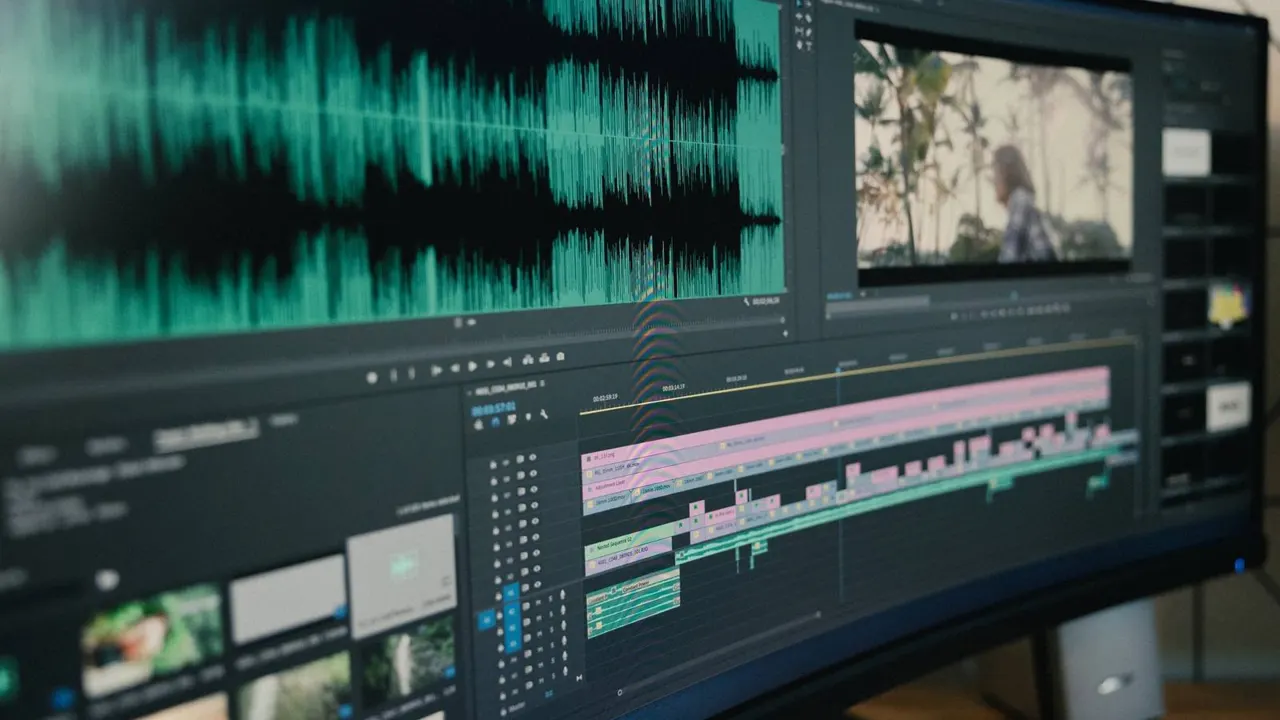
Keyframes are what separate a flat edit from a polished one. A keyframe tells Jianying the exact position, size, rotation or opacity of a clip at one moment, and the editor smoothly animates everything between two keyframes. Zooms that push into a product, photos that drift across the screen and text that slides in all come from this one idea.
The good news is that the Jianying timeline makes keyframes visual and forgiving. This guide teaches the mental model first, then walks through the three animations beginners use most, with the timing values our reviewer uses on real projects. If you are new to the app, start with Jianying video editor for the verified facts, screenshots and download information, then come back to this guide.
The two keyframe rule
Every animation needs at least two keyframes: a start state and an end state. Move the playhead to where the movement should begin, select the clip, and tap the keyframe diamond to set the first point. Move the playhead forward, then change the clip: pinch to zoom, drag to move, or rotate with two fingers. Jianying adds the second keyframe automatically and animates between them.
Distance in time controls speed. Two keyframes one second apart make a fast move, while the same change spread over three seconds feels calm and premium. When a move looks jerky, the cause is almost always keyframes that are too close together or a value that changes too far in too little time.
A slow zoom that feels cinematic
For a gentle push in on a photo or a talking head clip, set the first keyframe at the natural size, move two to four seconds forward, and scale the clip to about 110 to 120 percent. Keep the subject centred by dragging the frame as you zoom, so faces never drift toward an edge. This is the classic documentary drift, and it rescues static shots throughout travel, food and review videos.
For a punch in on a joke or a reaction, compress the same move into half a second and scale to 130 percent. The contrast between calm drifts and one or two fast punch ins gives an edit rhythm without any extra effects.
Readers working through this topic usually also need our walkthrough on slow motion and speed ramping in jianying, explained simply, which covers the neighbouring step in the same workflow.
Pans, spins and moving text
To pan across a wide photo, start with the frame on the left of the image, then keyframe the position to the right side over the length of the clip. For product spins, keyframe rotation from zero to 360 degrees across the clip length and trim so the loop point is invisible. Text follows the same rule: keyframe its position at the start of a line, then again where it should settle, and the words glide instead of popping.
Stack keyframes on overlays too. A logo that fades in uses opacity keyframes, zero at the start and full a few frames later. Combining a small move, a scale change and a fade in one overlay is how channel intros are built in this editor.
Fixing moves that look wrong
If an animation eases too suddenly, add a middle keyframe to reshape the path. If a clip moves the wrong way, you probably set the end state before the start state; delete both diamonds and rebuild in time order. Preview at full screen, because small position errors hide in the small preview. Finally, keep moves motivated: zoom toward what the narration mentions, pan toward where the action goes, and your keyframes will read as storytelling rather than decoration.
Two more guides round out this workflow: chroma key in jianying: green screen effects on your phone and jianying templates: find, customise and reuse winning formats. Together they cover the steps before and after this one, so a full project never stalls on a missing piece.
Frequently Asked Questions
Where is the keyframe button in Jianying?
Why does my clip jump instead of animating?
Can I copy keyframes to another clip?

Victor Liang
Victor Liang has spent nine years cutting short form video for creators and small studios, and he tests every editor on this site on real Android phones before a download page goes live. His bench work focuses on timeline performance, caption accuracy, export quality and how an app behaves on mid range hardware. More about Victor Liang